
1. Add a New Data Source
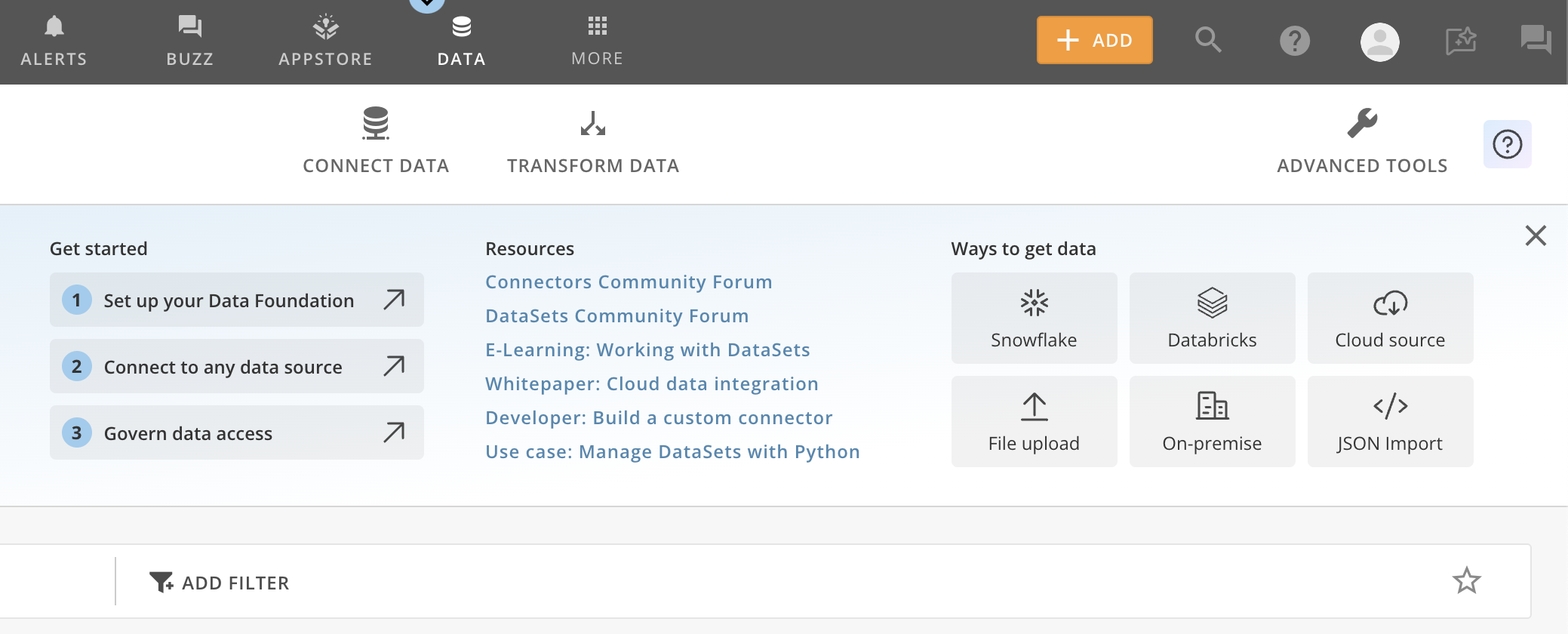
- Navigate to the data source section in Domo
- Select “Add New Data Source”
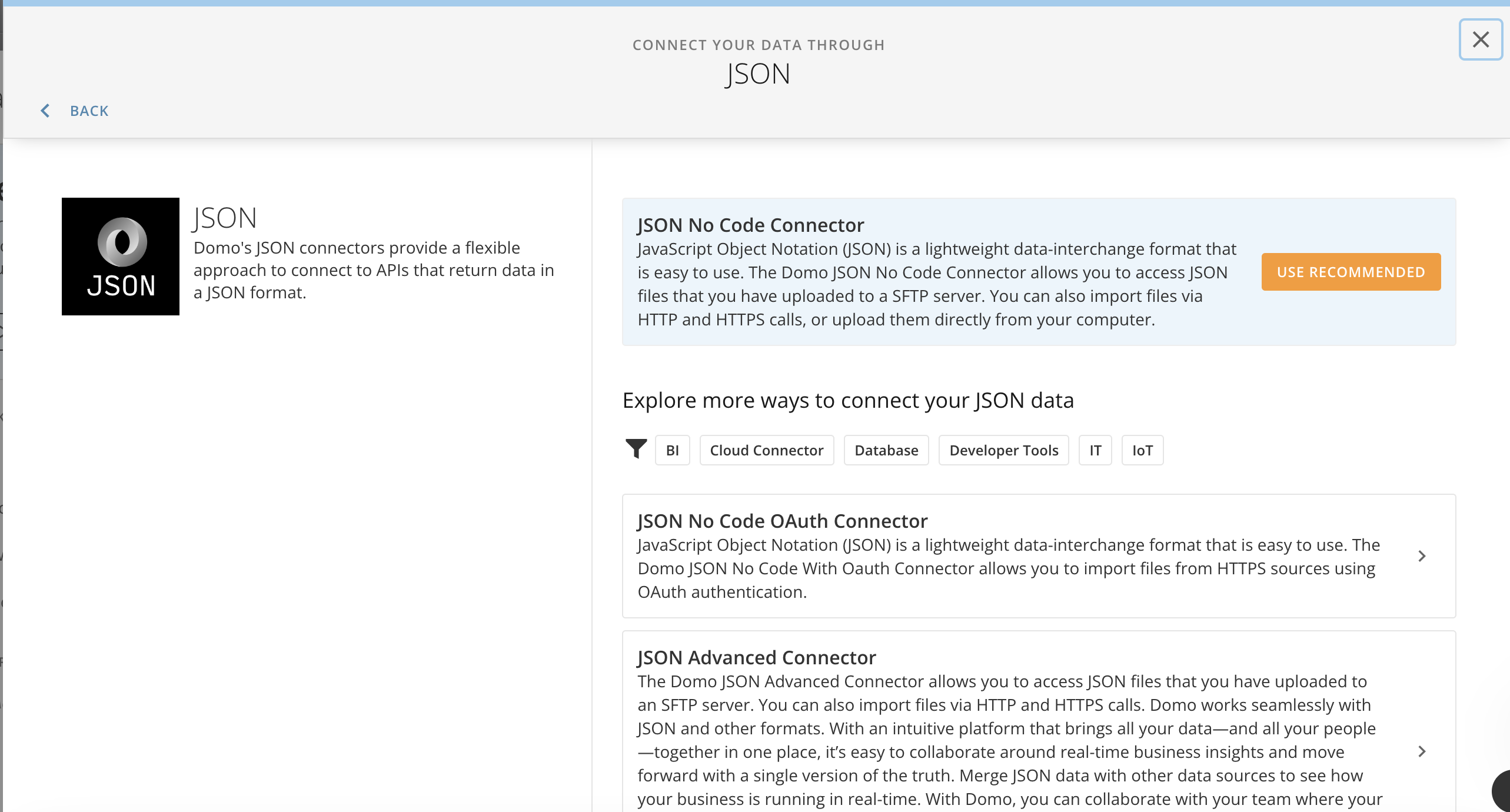
- In the list of connectors, find and choose the “JSON No Code Connector”
2. Create a New Account
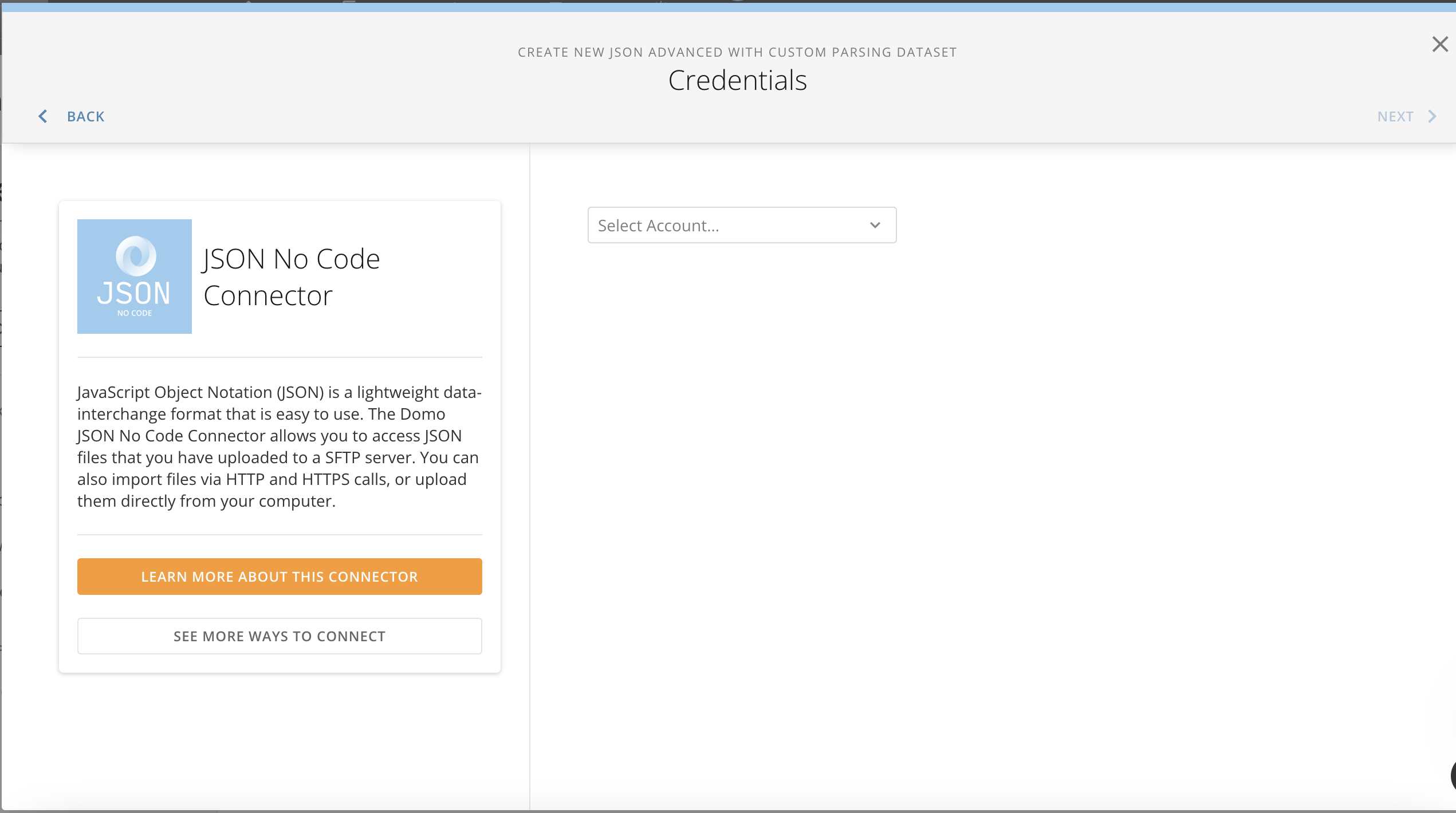
- Once you’ve selected the JSON No Code Connector, you’ll need to set up a new account
- In the authentication section, select “API Key” as the authentication method
- You’ll see a field for the Header. Enter
x-api-keyas the Header name - For the API Key value, enter the key that our team has provided to you
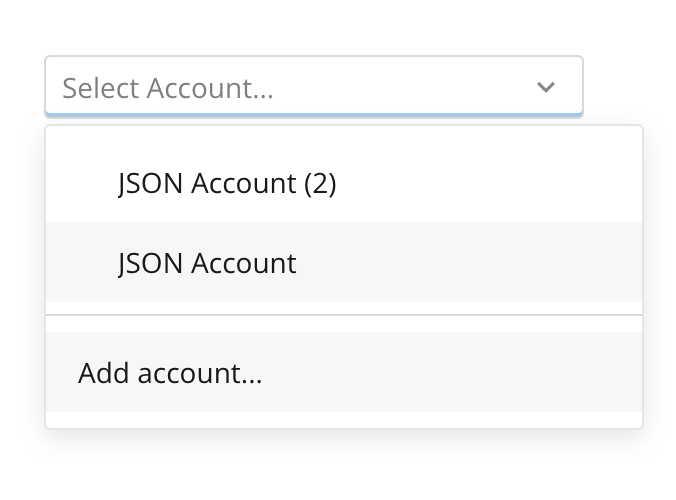
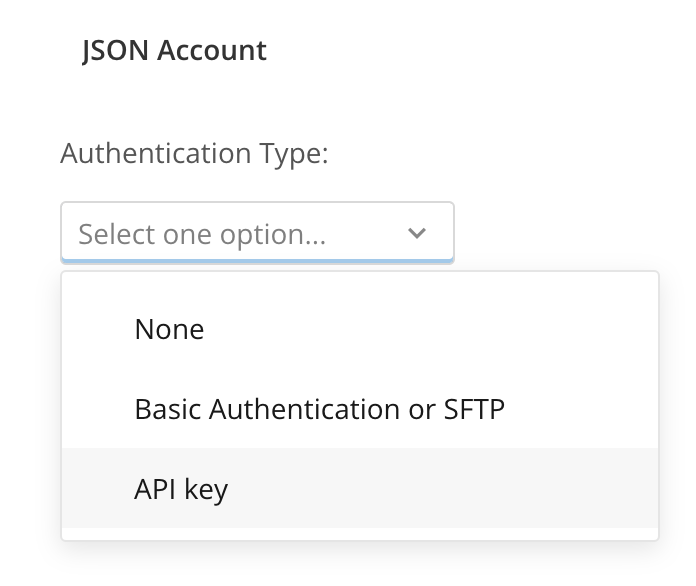
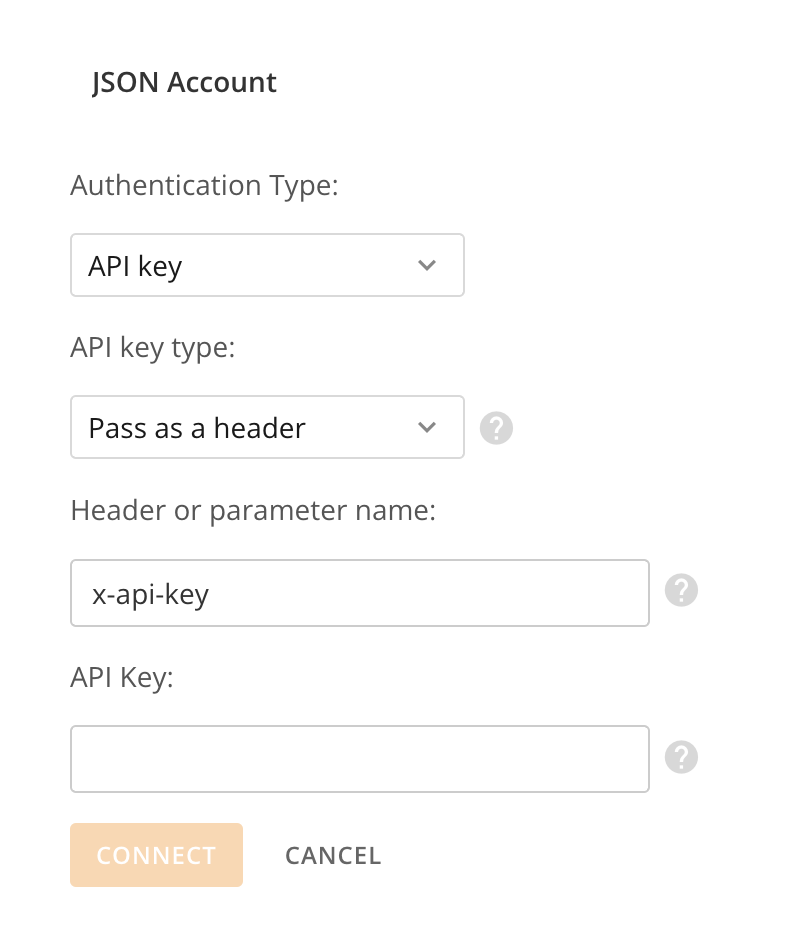
3. Add Another Header
- Click on “Add Header Again”
- For this new header, enter
clientas the Header name - In the value field, enter the client key sent to you by our team
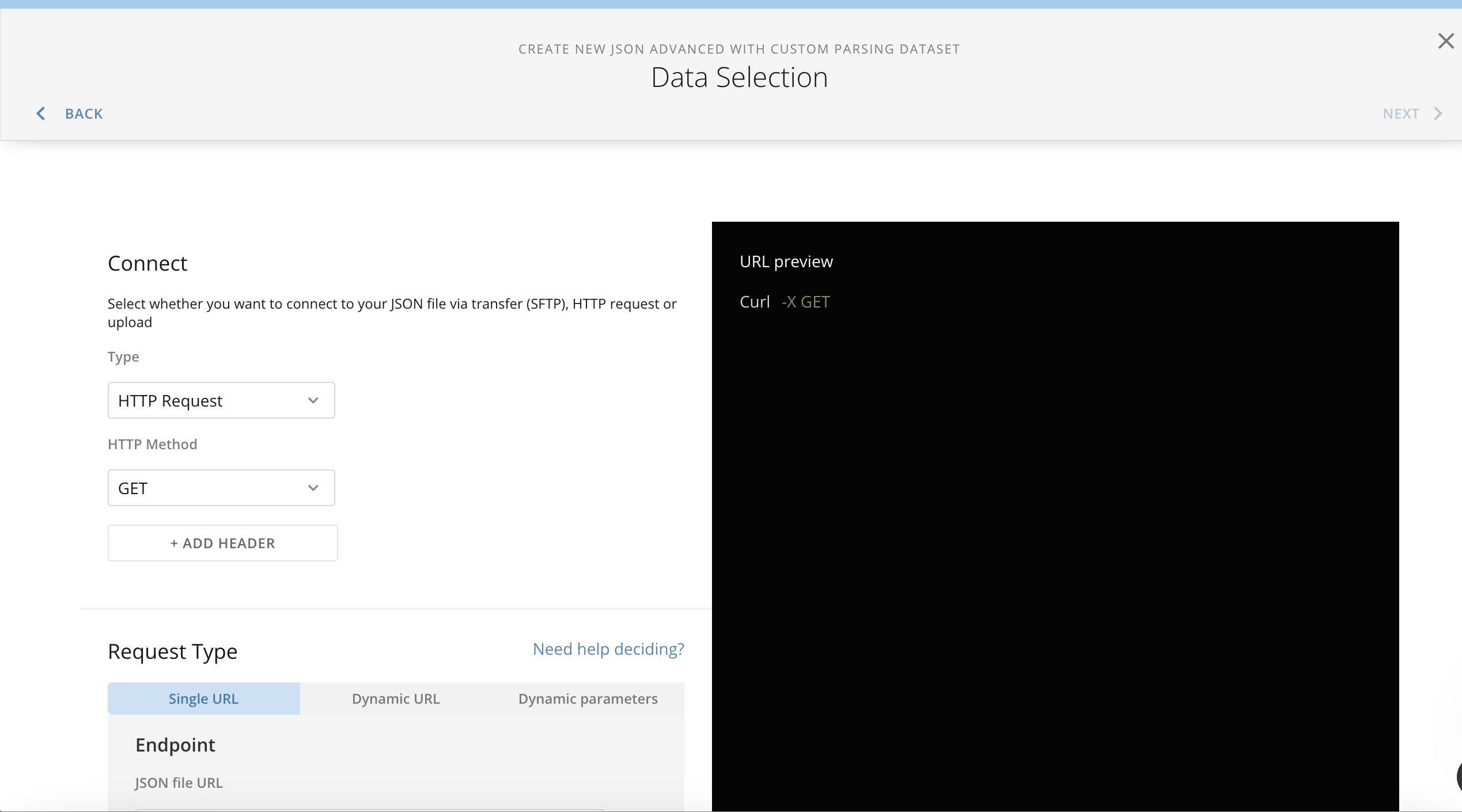
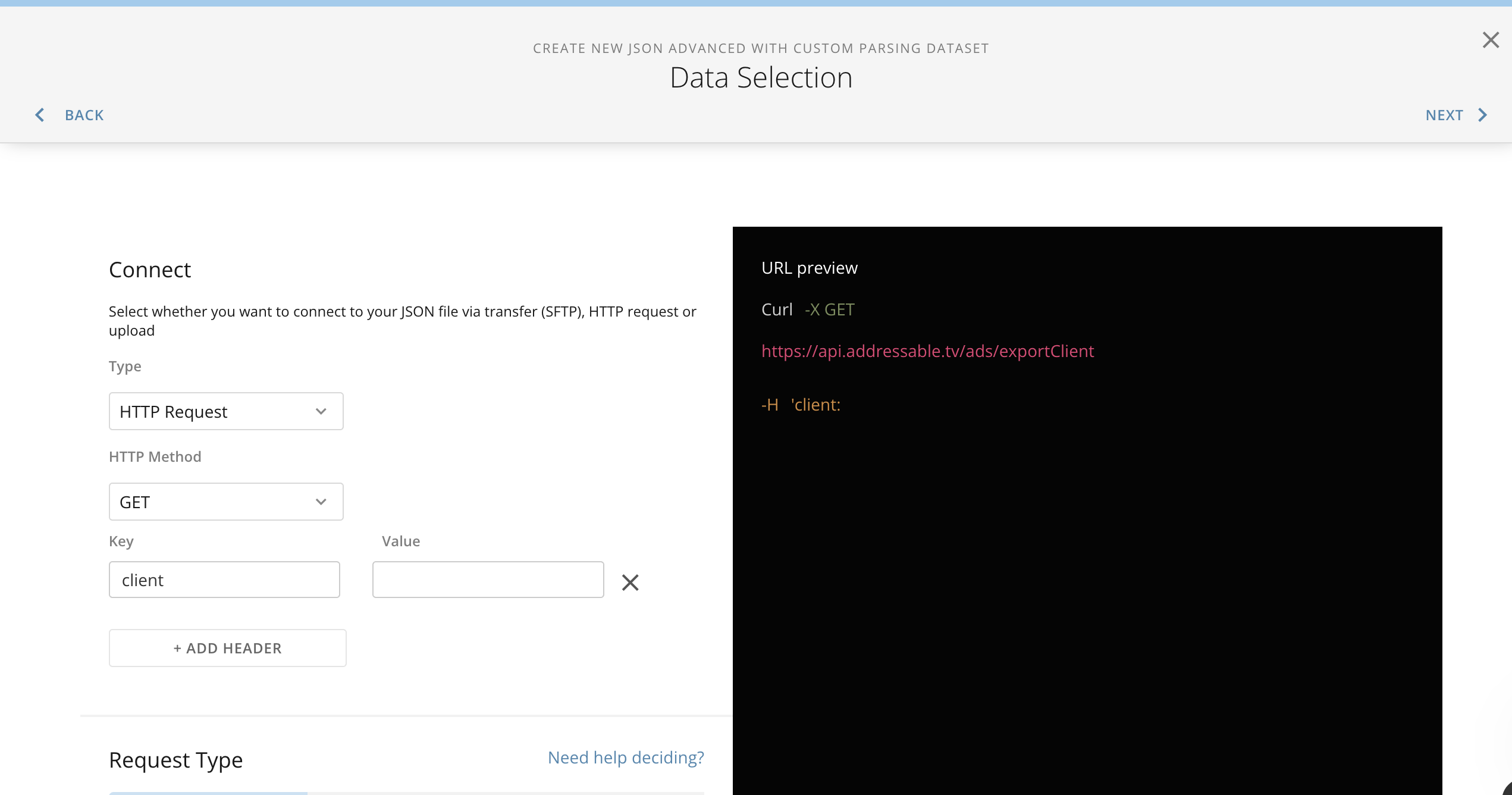
4. Set Up the Request URL
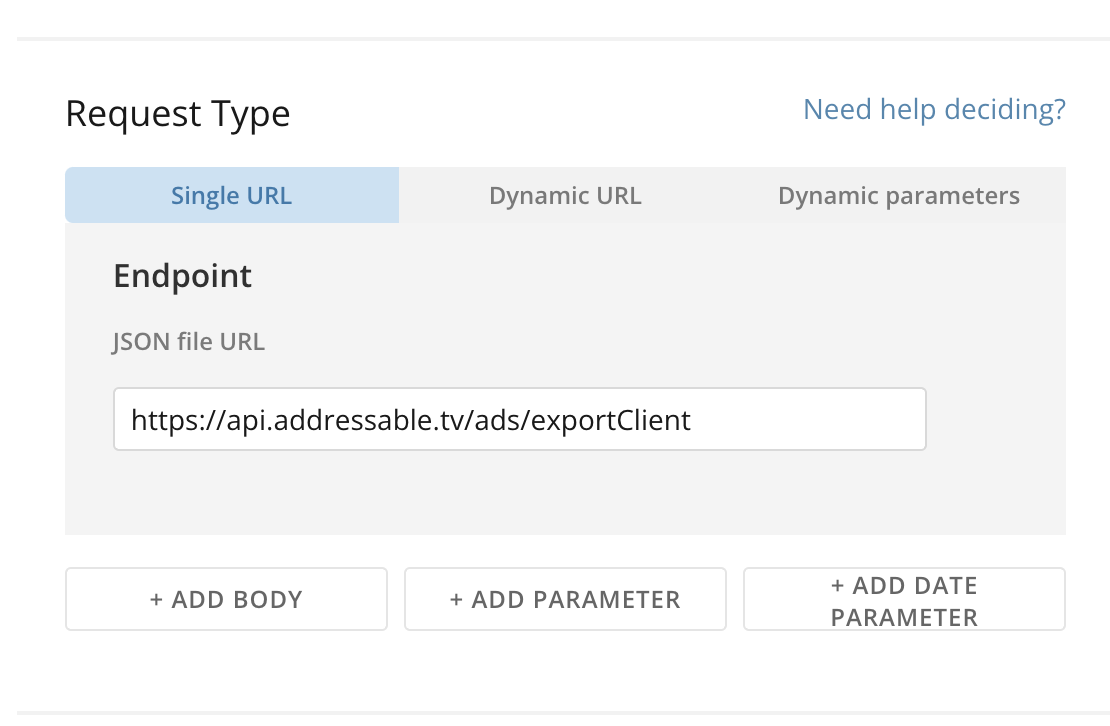
- In the “Request Single URL Endpoint” section, enter one of the following URLs depending on the data you need:
https://api.addressable.tv/ads/exportClient
For Campaign Device Reports:
https://api.addressable.tv/campaigns/exportClientDeviceReport
After completing these steps, you should be ready to configure your data source and start importing data from the Addressable API.
Note: Make sure to keep your API key and client key secure and don’t share them publicly.
Updating the Data Schema:
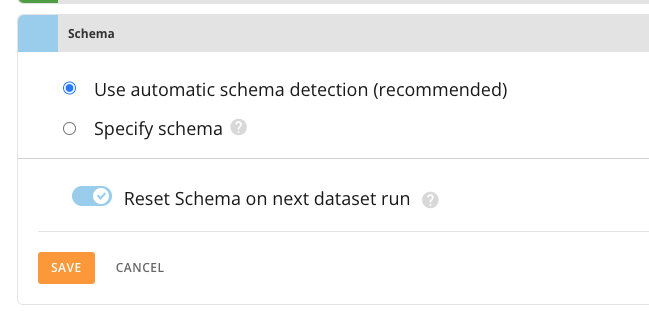
1. Navigate to Settings once the DataSource is added

2. Under Schema select Reset Schema on next dataset run
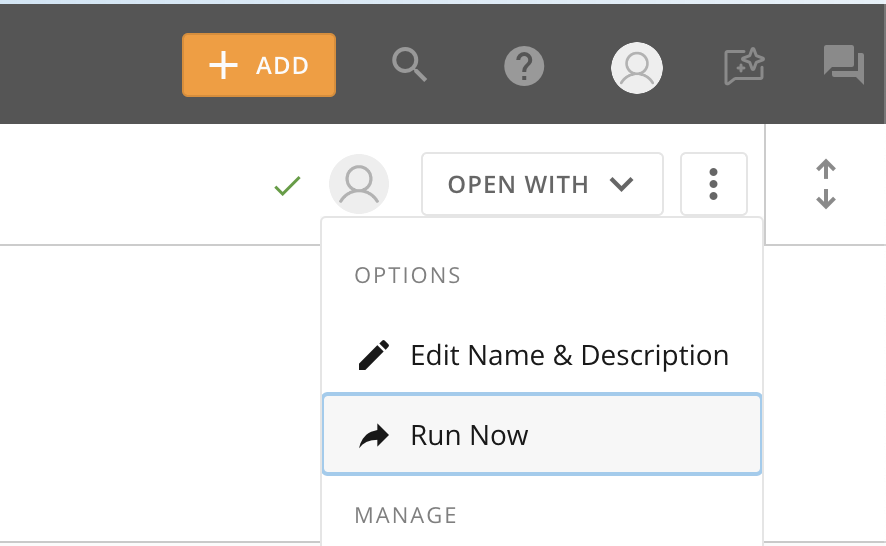
3. Go back to Overview and click Run Now