> ## Documentation Index
> Fetch the complete documentation index at: https://docs.addressable.tv/llms.txt
> Use this file to discover all available pages before exploring further.
# Domo
> Integrate the Addressable API into Domo
## 1. Add a New Data Source
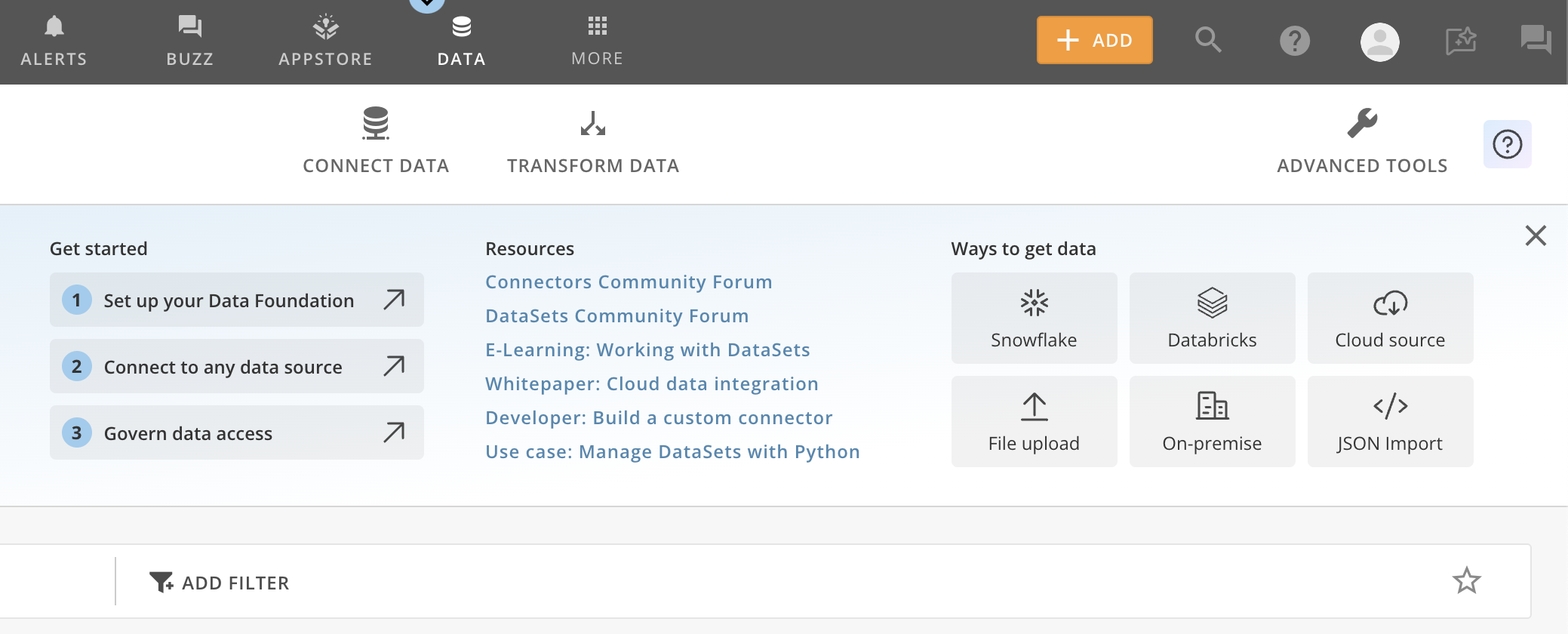
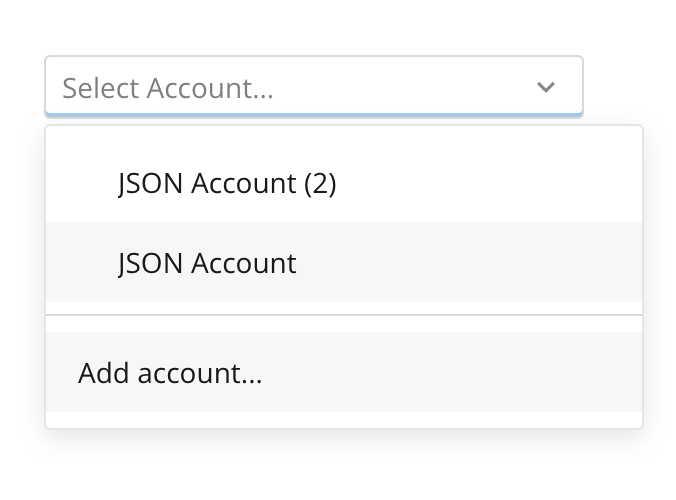
* Navigate to the data source section in Domo
* Select "Add New Data Source"
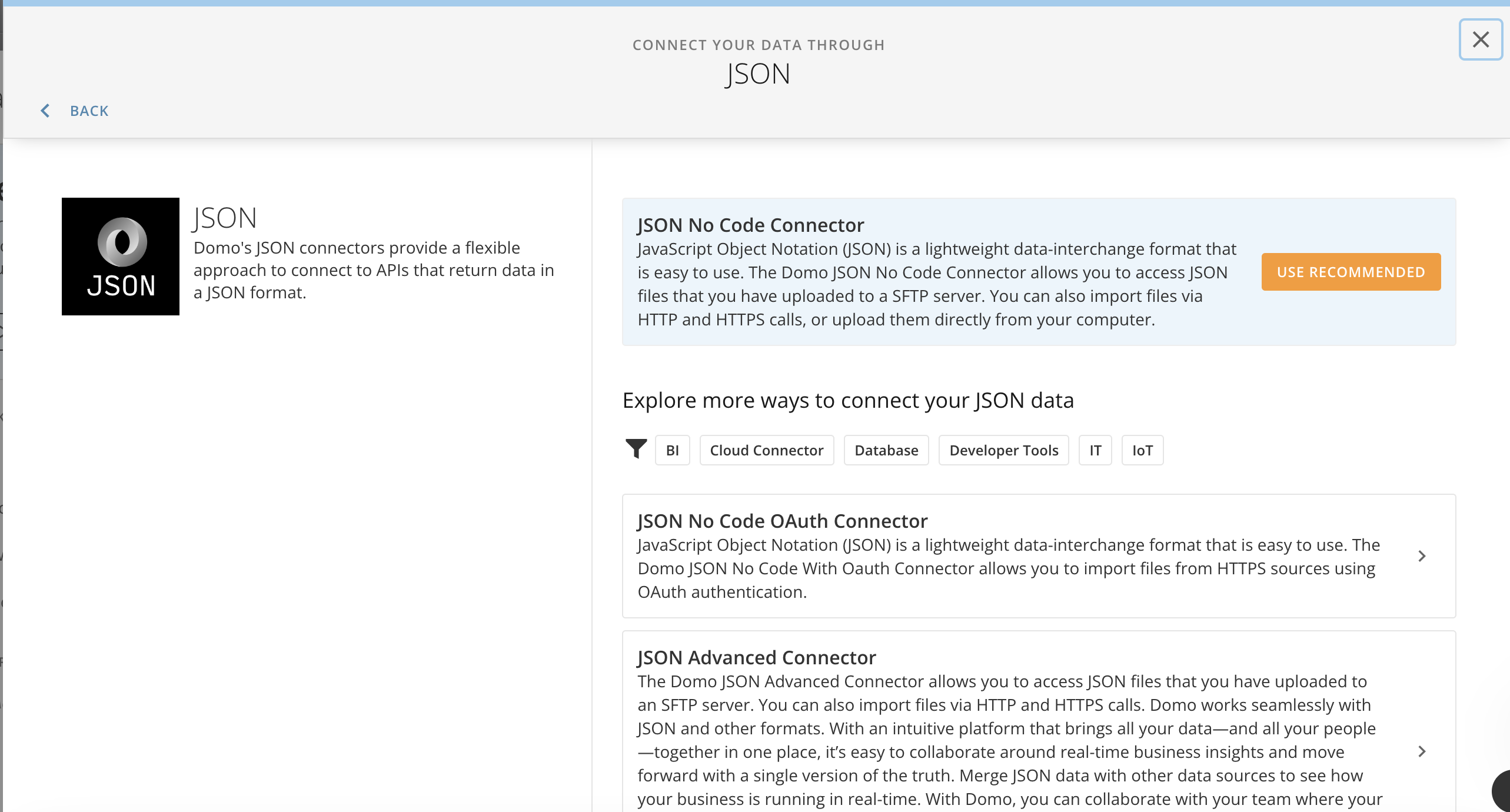
* In the list of connectors, find and choose the "JSON No Code Connector"
 ## 2. Create a New Account
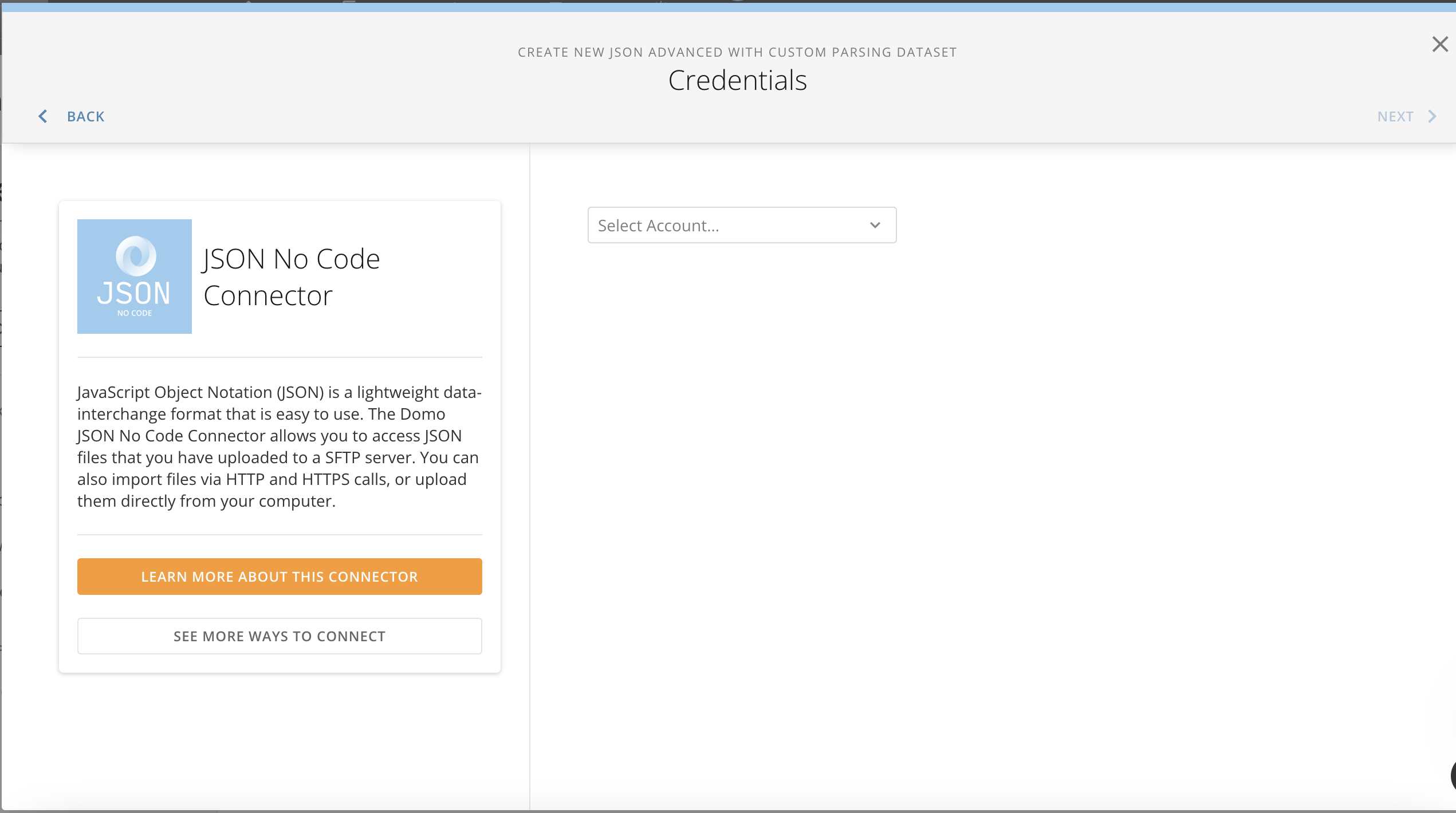
* Once you've selected the JSON No Code Connector, you'll need to set up a new account
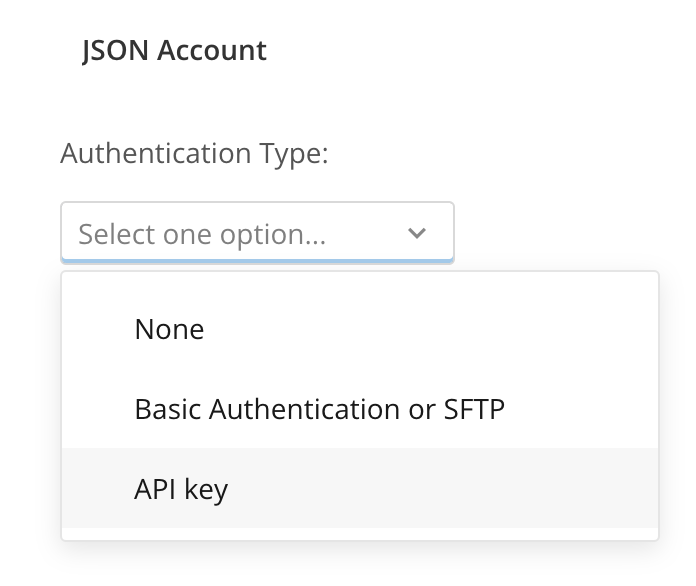
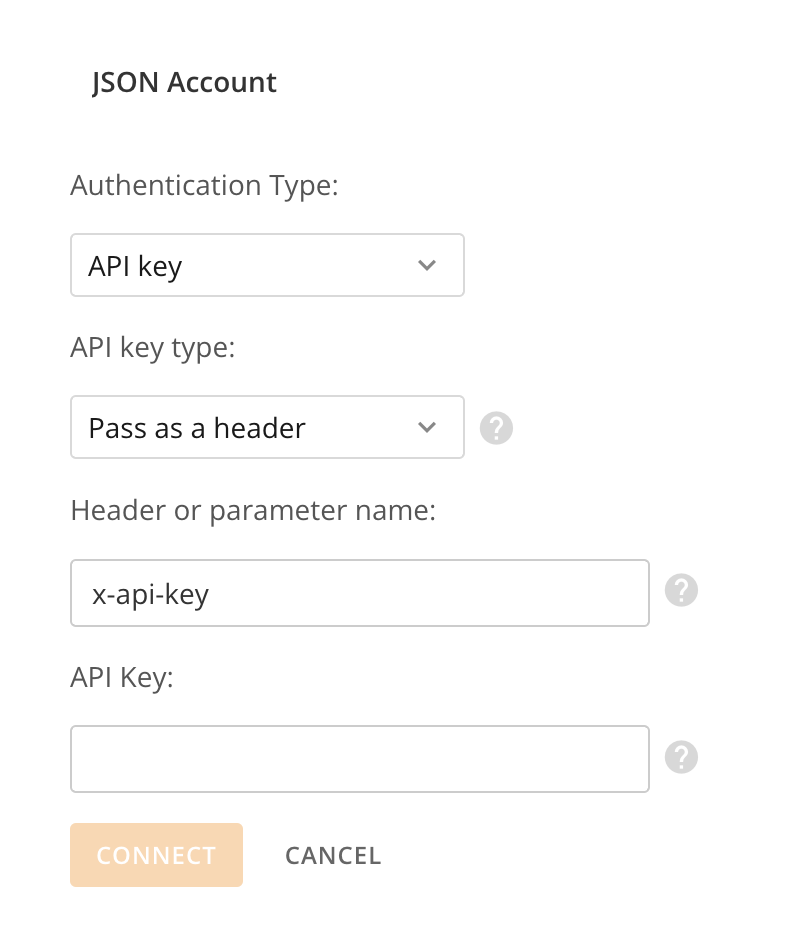
* In the authentication section, select "API Key" as the authentication method
* You'll see a field for the Header. Enter `x-api-key` as the Header name
* For the API Key value, enter the key that our team has provided to you
## 2. Create a New Account
* Once you've selected the JSON No Code Connector, you'll need to set up a new account
* In the authentication section, select "API Key" as the authentication method
* You'll see a field for the Header. Enter `x-api-key` as the Header name
* For the API Key value, enter the key that our team has provided to you
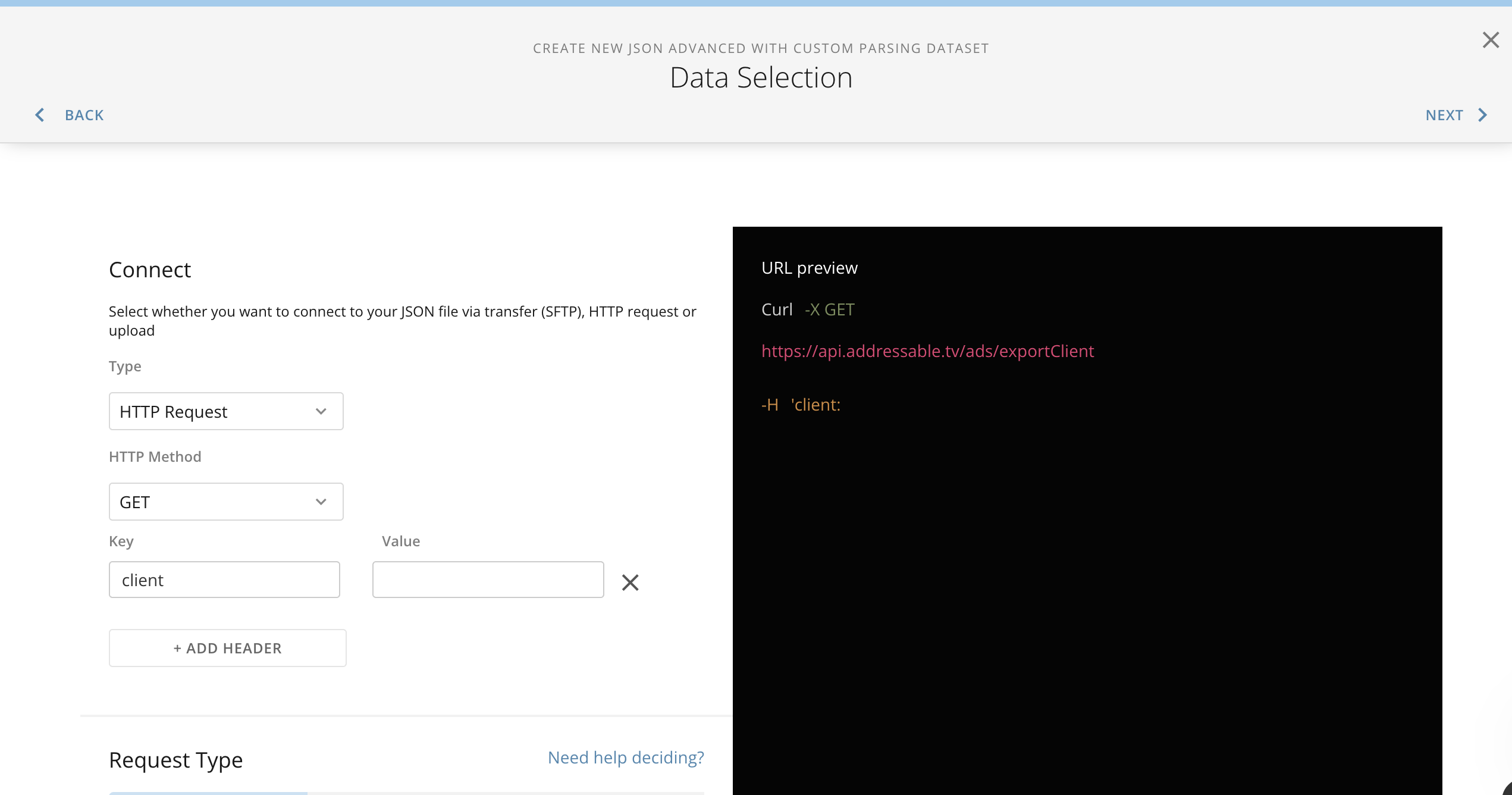
 ## 3. Add Another Header
* Click on "Add Header Again"
* For this new header, enter `client` as the Header name
* In the value field, enter the client key sent to you by our team
## 3. Add Another Header
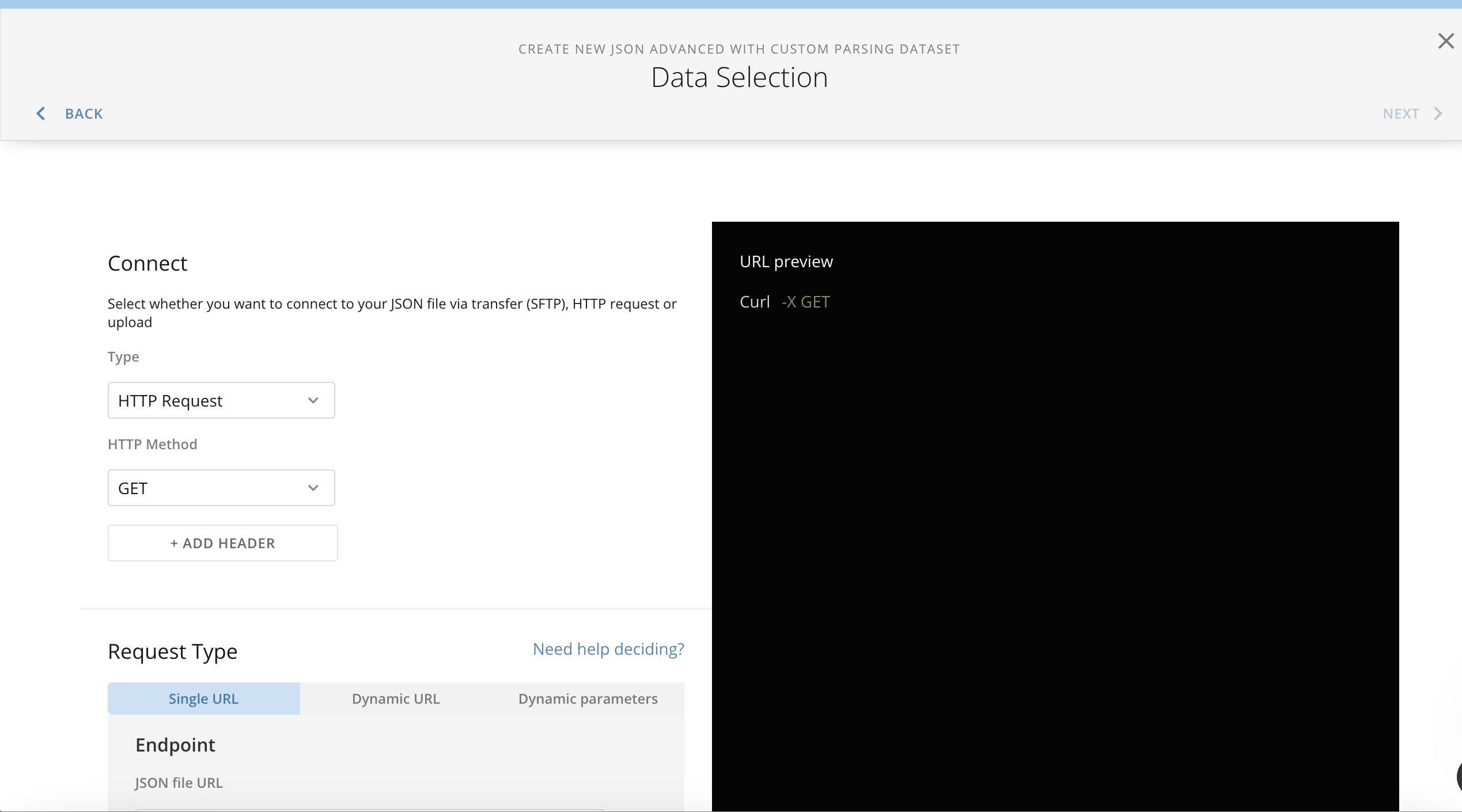
* Click on "Add Header Again"
* For this new header, enter `client` as the Header name
* In the value field, enter the client key sent to you by our team
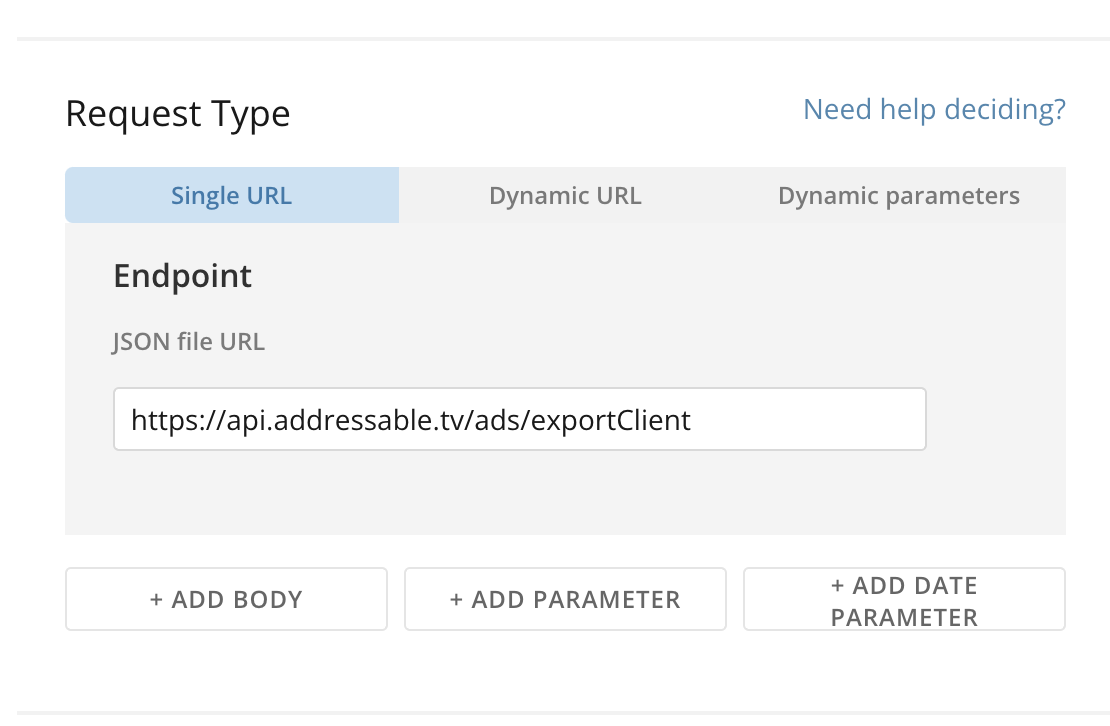
 ## 4. Set Up the Request URL
* In the "Request Single URL Endpoint" section, enter one of the following URLs depending on the data you need:
For Ad Performance Data:
`https://api.addressable.tv/ads/exportClient`
For Campaign Device Reports:
`https://api.addressable.tv/campaigns/exportClientDeviceReport`
After completing these steps, you should be ready to configure your data source and start importing data from the Addressable API.
Note: Make sure to keep your API key and client key secure and don't share them publicly.
## 4. Set Up the Request URL
* In the "Request Single URL Endpoint" section, enter one of the following URLs depending on the data you need:
For Ad Performance Data:
`https://api.addressable.tv/ads/exportClient`
For Campaign Device Reports:
`https://api.addressable.tv/campaigns/exportClientDeviceReport`
After completing these steps, you should be ready to configure your data source and start importing data from the Addressable API.
Note: Make sure to keep your API key and client key secure and don't share them publicly.
 # Updating the Data Schema:
### 1. Navigate to **Settings** once the **DataSource** is added
# Updating the Data Schema:
### 1. Navigate to **Settings** once the **DataSource** is added
 ### 2. Under **Schema** select **`Reset Schema on next dataset run`**
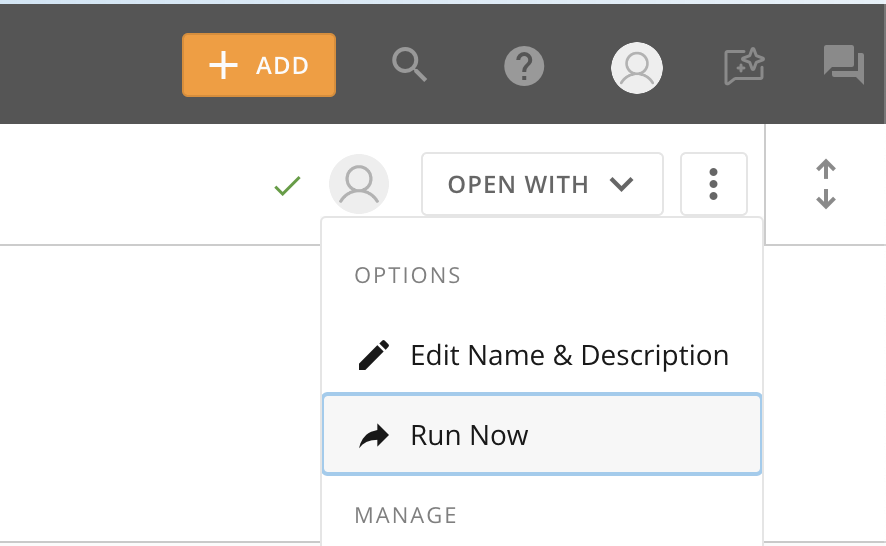
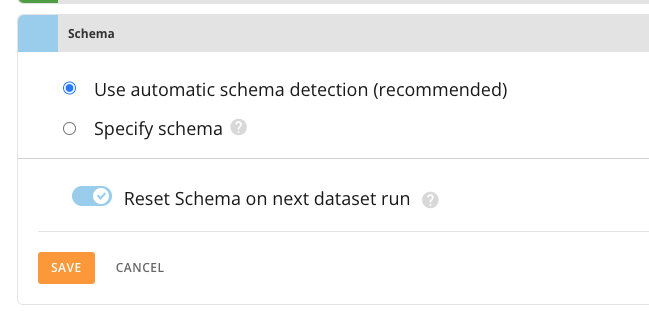 ### 3. Go back to **Overview** and click `Run Now`